Rollout milestones
How a Longwave engagement unfolds with the customer. Use Client reporting at every step to show the work in Reports → Overview and the Audit Log.Week 1 · Visibility
Silent mode. Baseline review of who is using what, and the policy violations
Longwave is already seeing.
Week 2 · Enforcement
First week with the policy live: blocks, conditional access, and DLP
actually applying.
Monthly · Operating review
Trends, violations, and policy tweaks since the last review.
Quarterly · Business review
Adoption and policy impact alongside the rest of the stack.
Steps
1
Sign in
Open the Longwave dashboard and sign in with an
account that can add tenants for your organization.
2
Click Add tenant
On the main dashboard, click Add tenant in the top right, or open Tenants in
the sidebar and add from there. Enter the customer’s details
and complete the setup in the flow.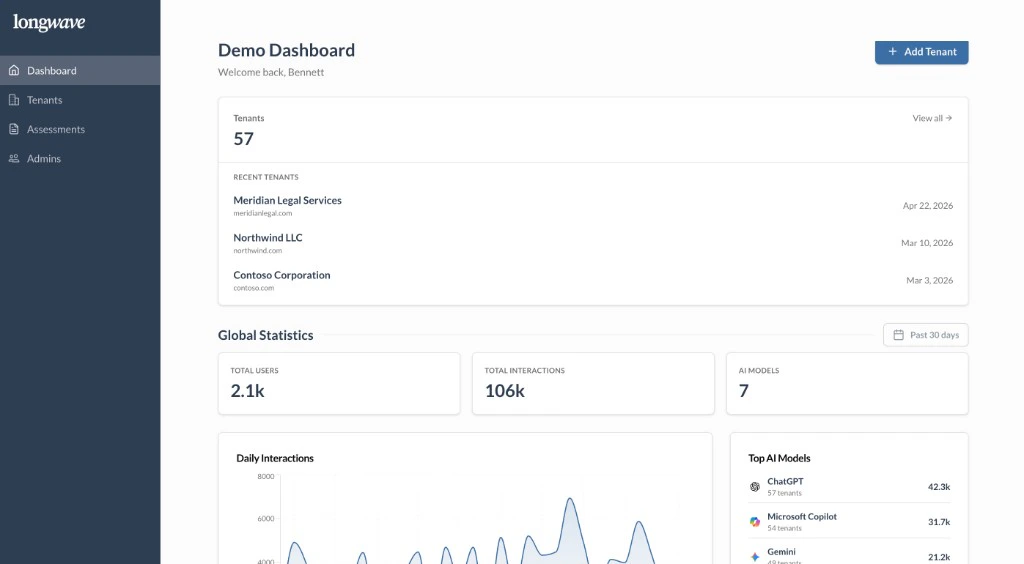

3
Deploy the browser extension
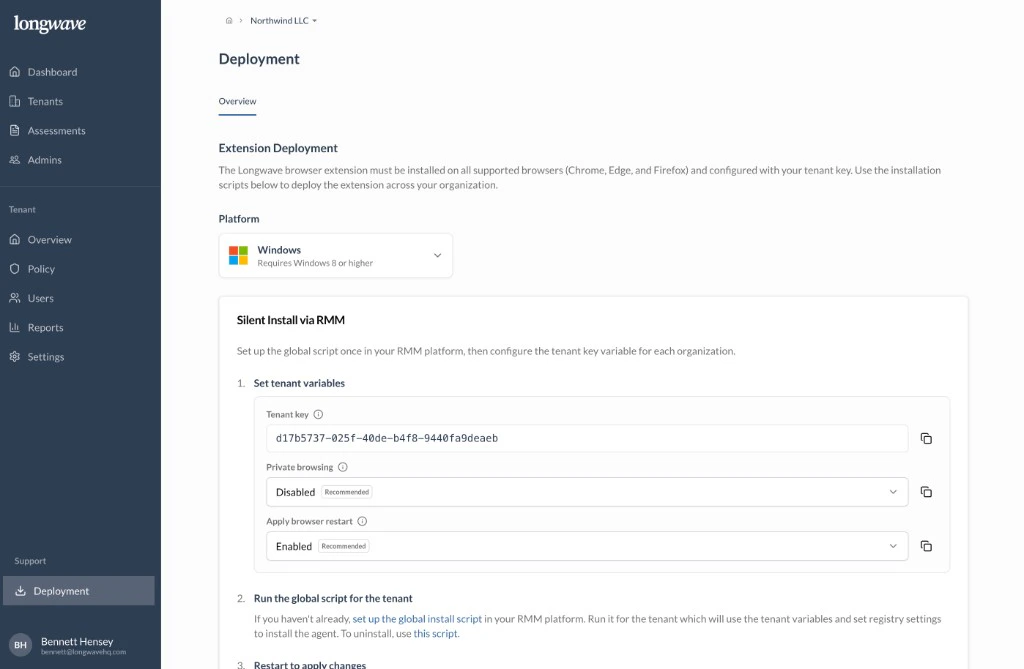
Open the tenant you created, then go to Support and choose Deployment. That
page is where you install the Longwave extension for Chrome, Edge, and
Firefox: pick a platform, copy the tenant key and options, and run the
scripts in your RMM the way the on-page steps describe. Afterward, confirm
coverage in the tenant overview or users view as your team expects.