> ## Documentation Index
> Fetch the complete documentation index at: https://docs.longwavehq.com/llms.txt
> Use this file to discover all available pages before exploring further.

# Adding a Tenant

> Sign in to Longwave, add a customer tenant, and deploy the browser extension.

## Rollout milestones

How a Longwave engagement unfolds with the customer. Use [Client
reporting](/how-tos/client-reporting/overview) at every step to show the work
in **Reports → Overview** and the **Audit Log**.

<CardGroup cols={2}>
  <Card title="Week 1 · Visibility" icon="eye">
    Silent mode. Baseline review of who is using what, and the policy violations
    Longwave is already seeing.
  </Card>

  <Card title="Week 2 · Enforcement" icon="shield-check">
    First week with the policy live: blocks, conditional access, and DLP
    actually applying.
  </Card>

  <Card title="Monthly · Operating review" icon="calendar-check">
    Trends, violations, and policy tweaks since the last review.
  </Card>

  <Card title="Quarterly · Business review" icon="chart-line">
    Adoption and policy impact alongside the rest of the stack.
  </Card>
</CardGroup>

## Steps

<Steps>
  <Step title="Sign in">
    Open the [Longwave dashboard](https://app.longwavehq.com) and sign in with an
    account that can add tenants for your organization.
  </Step>

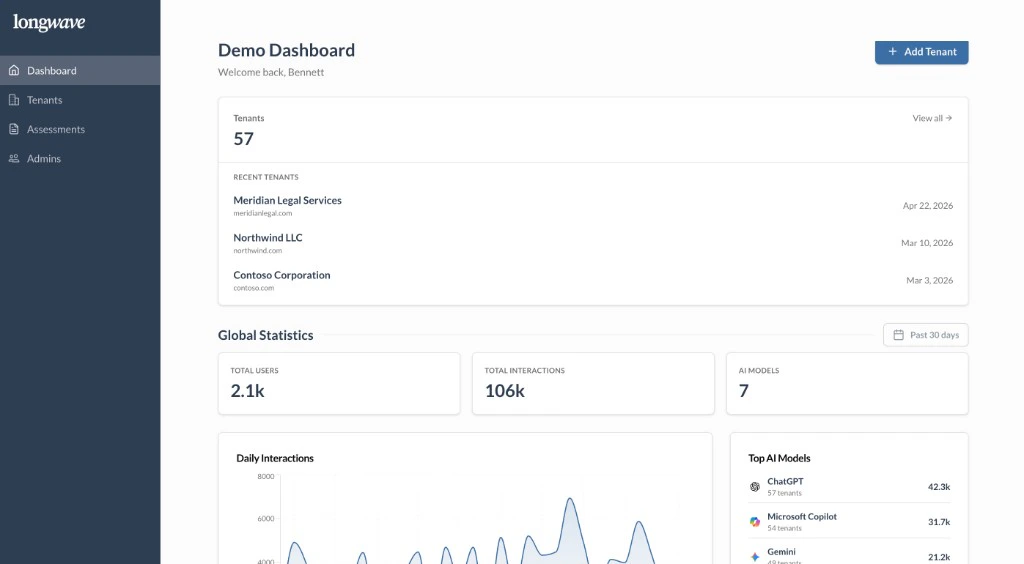
  <Step title="Click Add tenant">
    On the main dashboard, click Add tenant in the top right, or open Tenants in
    the sidebar and add from there. Enter the customer’s details
    and complete the setup in the flow.

    <Frame>
      <div style={{ position: "relative", lineHeight: 0 }}>
        <img src="https://mintcdn.com/longwave/-0YwkY__ulfCjmSG/images/add-tenant-dashboard.png?fit=max&auto=format&n=-0YwkY__ulfCjmSG&q=85&s=f872b13bd169b017adc241e8b613fea0" alt="Longwave demo dashboard with Add tenant button in the top right, recent tenants, and global statistics" style={{ width: "100%", height: "auto", display: "block" }} width="1024" height="564" data-path="images/add-tenant-dashboard.png" />

        <img
          src="https://mintcdn.com/longwave/-0YwkY__ulfCjmSG/images/add-tenant-arrow.svg?fit=max&auto=format&n=-0YwkY__ulfCjmSG&q=85&s=e8d0c434d09c325d37ecb2aa38fbc795"
          alt=""
          style={{
        position: "absolute",
        right: "10%",
        top: "12%",
        width: "min(18%, 110px)",
        height: "auto",
        pointerEvents: "none",
        filter: "drop-shadow(0 0 1px #fff) drop-shadow(0 0 3px #fff)",
      }}
          aria-hidden
          width="100"
          height="50"
          data-path="images/add-tenant-arrow.svg"
        />
      </div>
    </Frame>
  </Step>

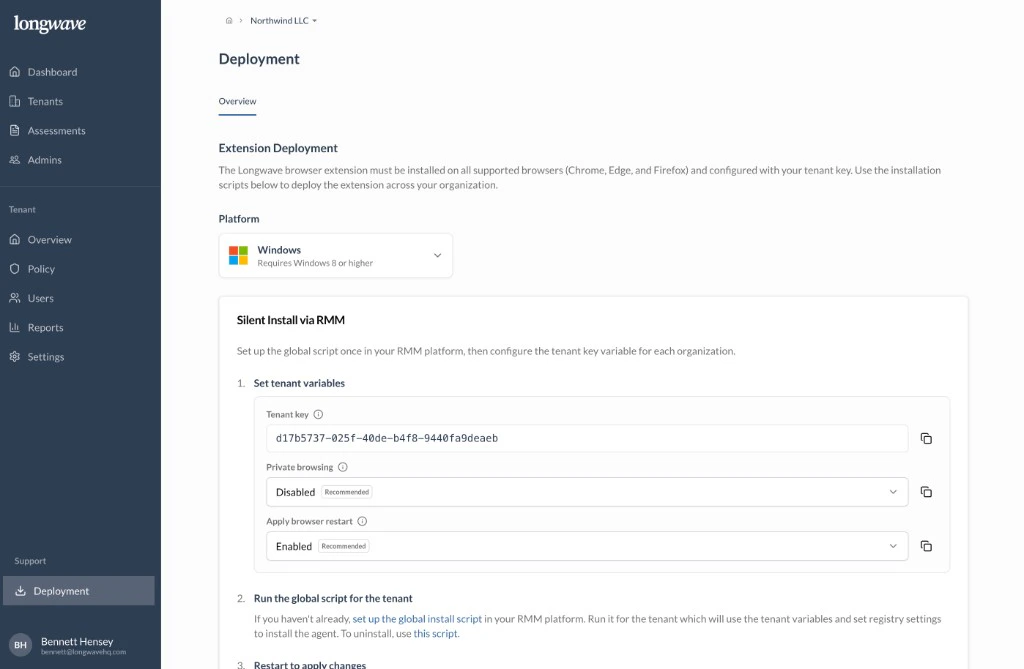
  <Step title="Deploy the browser extension">
    Open the tenant you created, then go to Support and choose Deployment. That
    page is where you install the Longwave extension for Chrome, Edge, and
    Firefox: pick a platform, copy the tenant key and options, and run the
    scripts in your RMM the way the on-page steps describe. Afterward, confirm
    coverage in the tenant overview or users view as your team expects.
    <Frame>
      <img src="https://mintcdn.com/longwave/-0YwkY__ulfCjmSG/images/tenant-deployment.png?fit=max&auto=format&n=-0YwkY__ulfCjmSG&q=85&s=2b318b379c182c643fea53f45da6c4de" alt="Longwave tenant Deployment page: extension instructions, platform selector, tenant key and RMM silent install steps for the selected tenant" width="1024" height="669" data-path="images/tenant-deployment.png" />
    </Frame>
  </Step>
</Steps>